Many of our guests use eBird to keep track of the birds they see during our tours. Our guides record sightings during each outing and then share the completed checklists with our company account. From there, our admin team ensures the checklists are shared with guests so the birds can be added to their personal eBird accounts.
However, shared checklists in eBird are not automatically added to your account. To include them in your records, you’ll need to review and accept the checklist. Here’s how it works.
How Shared eBird Checklists Work
When someone shares an eBird checklist with you, eBird creates a copy of that list for your account. Once you accept it, the observations will appear in your personal checklists and will count toward your life lists, trip lists, and other eBird statistics.
This is commonly used on birding tours, where a guide keeps the main checklist and then shares it with the participants.

Accepting a Shared eBird Checklist
In most cases, eBird will send you an email notification when a checklist is shared with you.
- Open the email from eBird.
- Click the link to review the shared checklist.
- Log in to your eBird account if prompted.
- Accept the checklist.
Once accepted, the checklist will appear in your account and the birds will be included in your records.
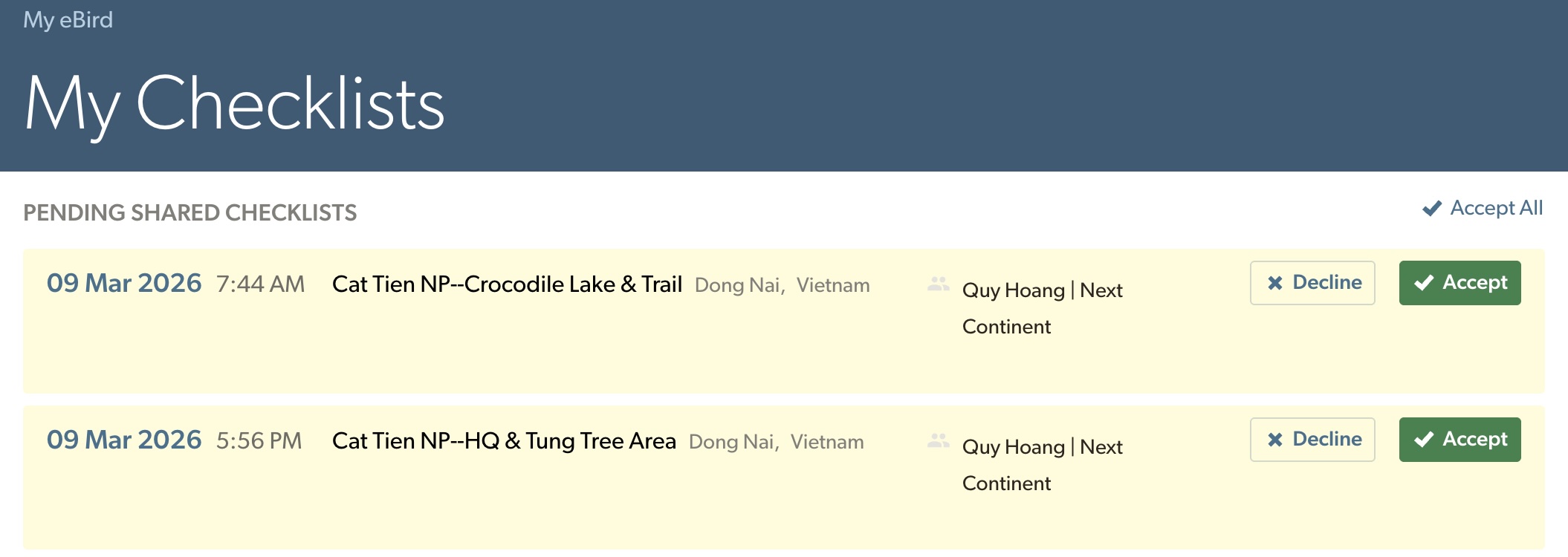
What If You Don’t Receive the Email?
Depending on your notification settings or email filters, the invitation email doesn’t always arrive. Fortunately, you can still find shared checklists directly in eBird.
To review shared checklists manually:
- Log in to eBird on a computer.
- Click My eBird in the menu.
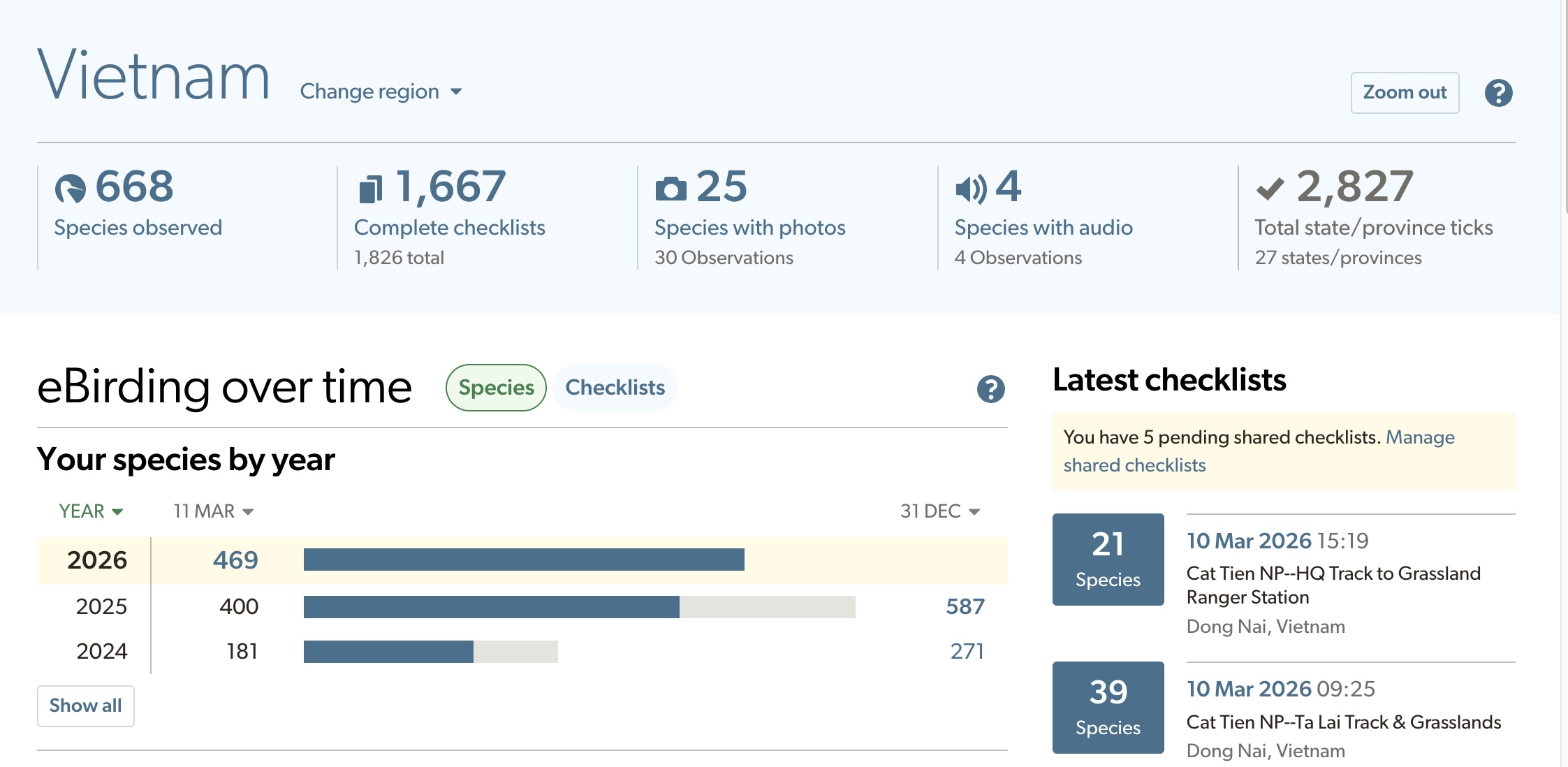
- Look for the Latest Checklists box on the right-hand side of the page.
- In this panel, you’ll see an option to review checklists that have been shared with you.
This section usually appears in a yellow or cream-coloured box and will list any checklists waiting for your approval.
Common Issues
One of the most common issues we encounter is that guests aren’t always sure of their username or the email address they used when creating their eBird account. Because shared checklists are sent to a specific username or email, this can prevent the list from reaching the correct account.
To check your username in the eBird app, open Settings >>> your username appears at the top of the page.
On a web browser, click the person icon in the top right corner and select “Cornell Lab Account.” This will open your account page, where your username and registered email address are shown on the left side.
eBird Checklists on Our Tours
During our tours, our guides usually create and submit checklists under the Next Continent account and then share them with participants. Accepting the shared checklist ensures that the birds recorded during the outing are also added to your own eBird account.
This allows you to:
- Keep a record of the birds seen during the tour
- Add observations to your personal eBird lists
- Maintain accurate trip and life lists
If you have any questions about accepting or editing shared checklists, feel free to let us know.